

ExplorerBlurMica Modern Blur and Mica Effects for Windows
Enhance your Windows experience with elegant blur, acrylic, and mica effects using ExplorerBlurMica, designed for a cleaner, smoother, and more modern desktop interface.
850K+
Downloads
4.9★
User Rating
100%
Free Forever
- Overview
What is ExplorerBlurMica?
A complete reintroduction of the modern Mica acrylic translucency to File Explorer windows on Windows 10 and 11.
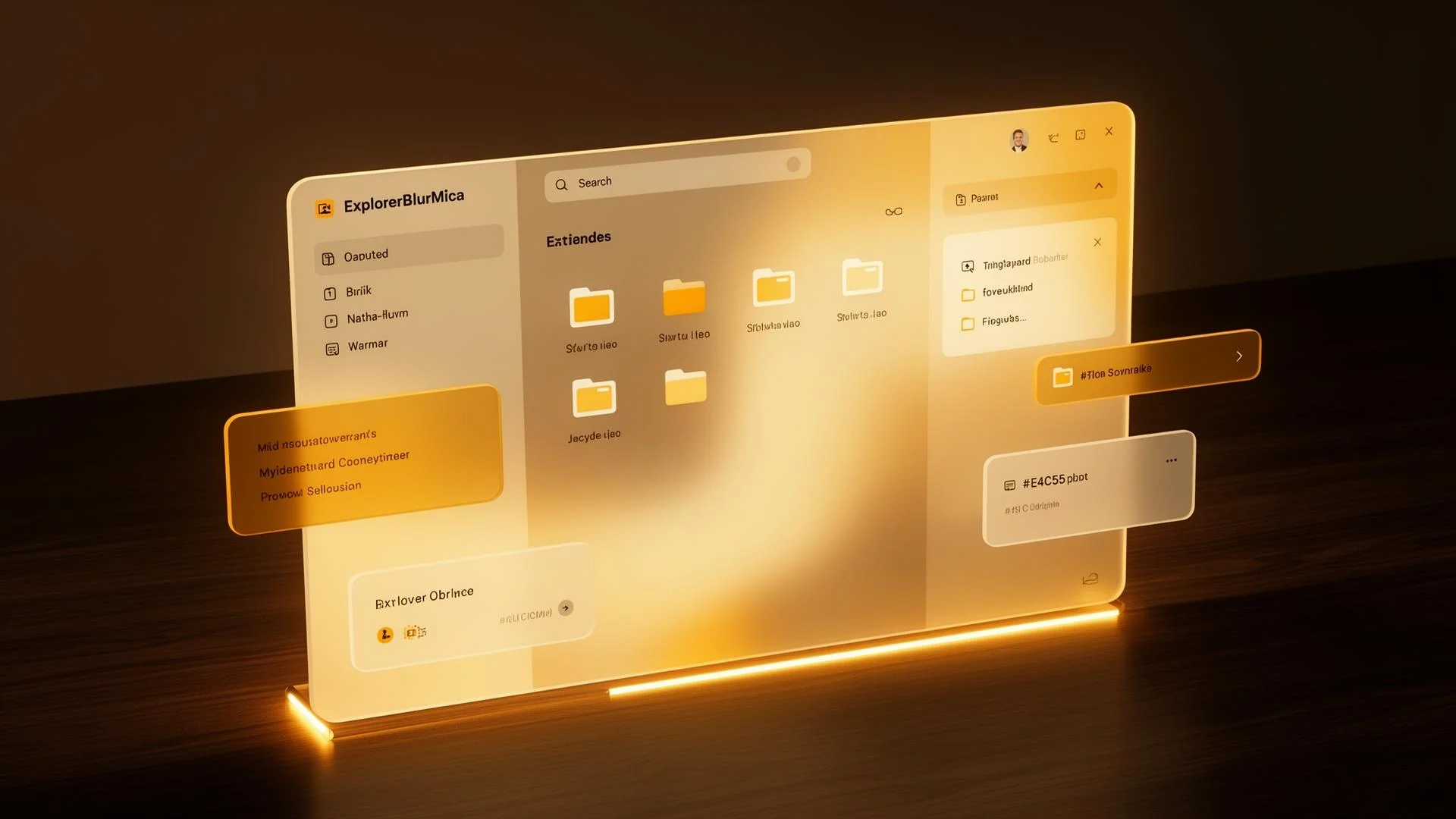
ExplorerBlurMica is a modern Windows customization tool designed to enhance the appearance of File Explorer with elegant blur, acrylic, and mica visual effects. It transforms the default Explorer interface into a cleaner, smoother, and more stylish experience inspired by the modern Windows design language. Users who want a premium desktop look often use ExplorerBlurMica to add transparency and depth effects without changing the core functionality of Windows Explorer.
The tool integrates directly with Windows Explorer and allows users to apply beautiful UI enhancements while maintaining system performance. With customizable settings, users can adjust blur intensity, transparency levels, and mica effects according to their personal preferences. ExplorerBlurMica is lightweight, easy to configure, and ideal for users who enjoy creating a modern and visually appealing Windows workspace.
- Top features
Key Features of ExplorerBlurMica
Upgrade your Windows Explorer with modern visual enhancements designed to deliver a cleaner, smoother, and more stylish desktop experience. ExplorerBlurMica combines elegant transparency effects with lightweight performance and simple customization options for everyday users.
Real Mica & Blur Effects
Bring a premium transparent appearance to Windows Explorer with advanced mica and blur visuals inspired by modern Windows design. ExplorerBlurMica creates a smooth interface that improves the overall look of folders, navigation panels, and desktop windows without affecting usability.
Lightweight Performance
ExplorerBlurMica is carefully optimized to run efficiently in the background while consuming minimal system resources. The lightweight design helps maintain smooth performance, making it suitable for both standard and high-performance Windows systems.
Easy Configuration
Customize your Explorer appearance with simple and flexible settings. Adjust transparency levels, blur intensity, opacity, and visual preferences easily to create a desktop style that matches your personal setup and aesthetic preferences.
Modern Windows Experience
Transform your desktop with clean Windows 11-inspired visuals that deliver a modern and elegant user interface. ExplorerBlurMica enhances the overall desktop atmosphere by adding stylish effects that make Windows Explorer look more polished and professional.
Seamless Explorer Integration
ExplorerBlurMica works directly with Windows Explorer for a natural and stable visual experience. The tool integrates smoothly without requiring complicated configuration processes, allowing users to enjoy enhanced transparency effects instantly.
Fast Installation
Get started quickly with a simple installation process designed for both beginners and advanced users. ExplorerBlurMica can be installed and configured within minutes, helping users apply modern visual effects without technical complexity.
- Workflow
How Does ExplorerBlurMica Work?
ExplorerBlurMica is designed to enhance the appearance of Windows Explorer with modern blur and mica effects while keeping the setup process simple and user-friendly. From installation to customization, the tool allows users to transform their desktop interface in just a few easy steps.
Install the Tool
Download and install ExplorerBlurMica on your Windows PC to begin enhancing your desktop experience. The installation process is quick and straightforward, making it easy for both beginners and advanced users to get started without complicated setup requirements.
Apply Visual Effects
After installation, enable modern visual effects such as blur, acrylic, and mica through the available settings. These effects instantly improve the appearance of Windows Explorer by creating a smoother, cleaner, and more elegant transparent interface.
Customize Appearance
Personalize the look of your Explorer interface by adjusting transparency levels, opacity, blur intensity, and other visual preferences. ExplorerBlurMica provides flexible customization options that help users create a desktop style that matches their workflow and aesthetic preferences.
Enjoy a Modern Desktop
Once the settings are applied, enjoy a refreshed Windows Explorer experience with premium-style visuals and modern interface effects. ExplorerBlurMica helps create a cleaner, more stylish desktop environment that feels smoother, more polished, and visually appealing for everyday use.
- Why Us
Why Choose ExplorerBlurMica?
Discover a modern way to customize Windows Explorer with elegant blur and mica effects, smooth performance, and a clean, user-friendly experience.
Modern UI Enhancement
ExplorerBlurMica transforms the standard Windows Explorer interface into a modern and visually appealing workspace. With elegant blur and mica effects, it delivers a premium desktop experience inspired by the latest Windows design trends.
Clean and Minimal Design
The tool focuses on simplicity and elegance, helping users create a cleaner Explorer appearance without unnecessary visual clutter. Its smooth transparency effects give Windows a polished and professional look.
Improved Desktop Aesthetics
ExplorerBlurMica enhances the overall feel of your desktop by adding stylish transparency, blur, and mica layers. These visual improvements make everyday navigation more enjoyable and visually balanced.
Beginner-Friendly Setup
The installation and configuration process is simple and straightforward. Even users with limited technical knowledge can quickly apply effects and customize their Explorer interface within minutes.
Customizable Visual Experience
Users can personalize the appearance according to their preferences by adjusting transparency levels, blur intensity, and other visual settings. This flexibility helps create a unique desktop style.
Smooth Windows Integration
ExplorerBlurMica works seamlessly with Windows Explorer, ensuring stable performance and smooth visual transitions without disrupting the normal functionality of the operating system.
- Key Benefits
Benefits of Using ExplorerBlurMica
Enhance your Windows desktop with modern visual effects, smooth transparency, and a lightweight customization experience designed for everyday users.
Better Visual Experience
Improve the appearance of Windows Explorer instantly with elegant blur and mica effects.
Personalized Desktop Setup
Create a unique and stylish workspace that matches your personal design preferences.
Smooth Transparency Effects
Enjoy premium-style UI animations and visually appealing transparency effects.
Lightweight Utility
Runs efficiently in the background without slowing down your system performance.
- Screenshots
See ExplorerBlurMica in action
A glimpse of how your File Explorer will look after installing.
- Requirements
System Requirements
Make sure your system meets the following requirements for a smooth and stable ExplorerBlurMica experience.
Windows 10 / Windows 11
Compatible with modern Windows operating systems, including Windows 10 and Windows 11.
Minimum RAM Requirement
Requires minimal system memory to run smoothly without affecting overall performance.
Compatible Explorer Version
Works with supported versions of Windows File Explorer for proper visual integration.
Administrator Permissions
Administrator access may be required during installation and configuration.
- Quick Setup
Installation Guide
Set up ExplorerBlurMica in just a few simple steps and start enjoying a modern Windows Explorer experience.
Download ExplorerBlurMica
Download the tool securely and begin the installation process within minutes.
Configure Settings
Customize blur intensity, transparency, and mica appearance according to your preferences.
Restart Explorer
Restart Windows Explorer to apply all visual changes instantly for the best experience.
- Customization
Make Mica truly yours
Make Mica truly yours with powerful customization options designed for a personalized Windows Explorer experience.
Blur Intensity
Adjust the blur level from fully transparent to deep blur effects until the interface looks exactly the way you want.
Tint Color
Choose any HEX color or sync with your Windows accent color for real-time visual adaptation.
Light / Dark Mode
Automatically switch between light and dark appearance based on your system theme without requiring a restart.
Per-Window Profiles
Apply different blur strengths and visual settings for File Explorer, Save dialogs, Run windows, and more.
- Honest review
Pros & Cons
A balanced look at the strengths and limitations.
Pros
- 100% free and open-source friendly
- Tiny footprint — under 2 MB RAM usage
- Native Windows API — no third-party theming engine needed
- Works on every Windows 11 build including 24H2
- Beautiful Mica effect with full customization
- Survives Explorer restarts and Windows updates
Cons
- Requires admin rights on first launch
- May briefly flicker when DWM compositor restarts
- Some third-party Explorer skins can conflict
- Not signed by Microsoft — SmartScreen may warn first time
- Dark color tints can reduce icon contrast slightly
- No official support on Windows 7 / 8 / 8.1
- Comparison
ExplorerBlurMica vs Alternatives
See how ExplorerBlurMica stands out from other Windows customization tools with its modern mica effects, lightweight performance, and seamless Explorer integration.
| Feature | ExplorerBlurMica | TranslucentTB | MicaForEveryone |
|---|---|---|---|
| Mica blur in Explorer | ✅ | ❌ | ✅ |
| RAM usage | <2 MB | ~5 MB | ~10 MB |
| Per-window profiles | ✅ | ❌ | Partial |
| Open source | ✅ | ✅ | ✅ |
| Win 11 24H2 support | ✅ | ✅ | Beta |
| Setup complexity | Easy | Easy | Advanced |
- Community Feedback
User Reviews & Testimonials
See what users are saying about their experience with ExplorerBlurMica and how it improves the Windows desktop experience.
“ExplorerBlurMica completely changed the look of my Windows Explorer. The blur and mica effects make my desktop feel modern and premium.”
Better Desktop Appearance
Verified ExplorerBlurMica User
“I was surprised by how lightweight and smooth it runs. Even with the visual effects enabled, my system performance stays stable.”
Smooth Performance
Windows Customization Enthusiast
“The setup process was very simple. I installed it within minutes and customized everything exactly the way I wanted.”
Easy Setup Experience
Professional Windows User
“Perfect tool for users who love clean and minimal desktop customization. The transparency effects look amazing.”
Modern UI Experience
Minimal Desktop Designer
- FAQs
Frequently Asked Questions
Find answers to the most common questions about ExplorerBlurMica, including installation, customization, compatibility, performance, and visual features.
What is ExplorerBlurMica used for?
ExplorerBlurMica is used to enhance the appearance of Windows Explorer with modern blur, acrylic, and mica visual effects.
Is ExplorerBlurMica free to use?
Yes, ExplorerBlurMica is available for free and can be used for personal desktop customization.
Does ExplorerBlurMica support Windows 11?
Yes, it is fully compatible with Windows 11 and also supports selected Windows 10 versions.
Can I customize blur intensity?
Yes, users can adjust blur intensity and transparency levels according to their preferences.
Is ExplorerBlurMica lightweight?
Yes, the tool is optimized for lightweight performance and minimal system resource usage.
Does it affect system performance?
ExplorerBlurMica is designed to run smoothly without significantly affecting overall system performance.
How do I uninstall ExplorerBlurMica?
You can uninstall it through Windows settings or by using the provided uninstaller.
Is it safe for Windows Explorer?
Yes, when installed correctly, ExplorerBlurMica works safely with Windows Explorer.
Does ExplorerBlurMica require administrator access?
Yes, administrator permissions may be required during installation and configuration.
Can I use ExplorerBlurMica on Windows 10?
Yes, many Windows 10 versions are supported depending on system compatibility.
Does it support dark mode?
Yes, ExplorerBlurMica supports both light and dark themes.
Can I change mica colors?
Yes, users can customize tint and accent colors for a personalized look.
Is a system restart required after installation?
Usually, restarting Windows Explorer is enough to apply the changes.
Can beginners use ExplorerBlurMica easily?
Yes, the tool is beginner-friendly with a simple setup process.
Does ExplorerBlurMica work in real time?
Yes, visual effects and theme changes can update in real time.
Can I create different profiles for windows?
Yes, per-window customization profiles are supported in compatible versions.
Does ExplorerBlurMica support transparency effects?
Yes, it provides smooth transparency and blur effects for Windows Explorer.
Is internet access required to use ExplorerBlurMica?
No, once installed, it can work offline without constant internet access.
Why do users prefer ExplorerBlurMica?
Users prefer it for its modern UI appearance, smooth effects, and easy customization options.
Can ExplorerBlurMica improve desktop aesthetics?
Yes, it helps create a cleaner, more modern, and visually appealing Windows desktop experience.