
ExplorerBlurMica enhances the Windows experience by adding a modern blur and mica effect to File Explorer, creating a sleek, aesthetic interface similar to the Windows 11 design language. Proper installation ensures system stability while unlocking the tool’s full visual customization potential. Following a structured approach helps users avoid errors and achieve a smooth setup process.
Understanding ExplorerBlurMica and Its Purpose
ExplorerBlurMica is a lightweight system customization utility that modifies the appearance of Windows File Explorer. The tool applies acrylic blur and mica-inspired transparency effects, improving the visual depth of the operating system interface.
Modern UI customization has become increasingly popular among Windows users seeking a cleaner workspace. ExplorerBlurMica meets that demand by offering subtle visual refinement without heavily impacting system performance.
Read More: ExplorerBlurMica: Is It Free to Use?
System modifications like these typically require careful installation steps, especially when interacting with Windows system files or explorer-level components. Proper preparation ensures compatibility and reduces the risk of crashes or UI glitches.
System Requirements Before Installation
A stable environment improves installation success and prevents unnecessary troubleshooting later. Windows 10 or Windows 11 provides the best compatibility for ExplorerBlurMica.
Administrative access becomes essential since system-level changes require elevated permissions. A backup of important files adds an extra layer of safety in case rollback becomes necessary.
Microsoft Visual C++ Redistributable packages may also be required, depending on the version of the tool being installed. Updated system drivers further ensure smooth rendering of blur effects and transparency layers.
Downloading ExplorerBlurMica Safely
Official or trusted repositories should always be the primary source for downloading ExplorerBlurMica. Third-party or unknown sites may distribute modified files that compromise system security.
GitHub repositories often host the latest stable releases along with version history and changelogs. Reviewing release notes helps identify bug fixes and compatibility updates before installation.
Scanning downloaded files using Windows Defender or a trusted antivirus tool ensures no malicious components are present. Clean installation files reduce risks and improve system stability.
Preparing Windows for Installation
System preparation reduces conflicts during installation. Closing active File Explorer windows prevents interference while replacing or modifying system components.
Turning off conflicting customization tools helps avoid overlapping visual modifications. Some UI tweakers or third-party shell extensions may interfere with ExplorerBlurMica functionality.
Creating a restore point provides a safe rollback option. Windows System Restore allows you to revert changes if unexpected issues occur after installation.
Step-by-Step Installation Process
Step 1: Extract the Downloaded Files
Compressed packages usually contain executable files and configuration scripts. Extracting the archive into a dedicated folder ensures better file organization and easier access.
Proper extraction prevents missing file errors during execution. Tools like WinRAR or 7-Zip handle extraction efficiently without altering file structure.
Step 2: Run the Installer or Executable
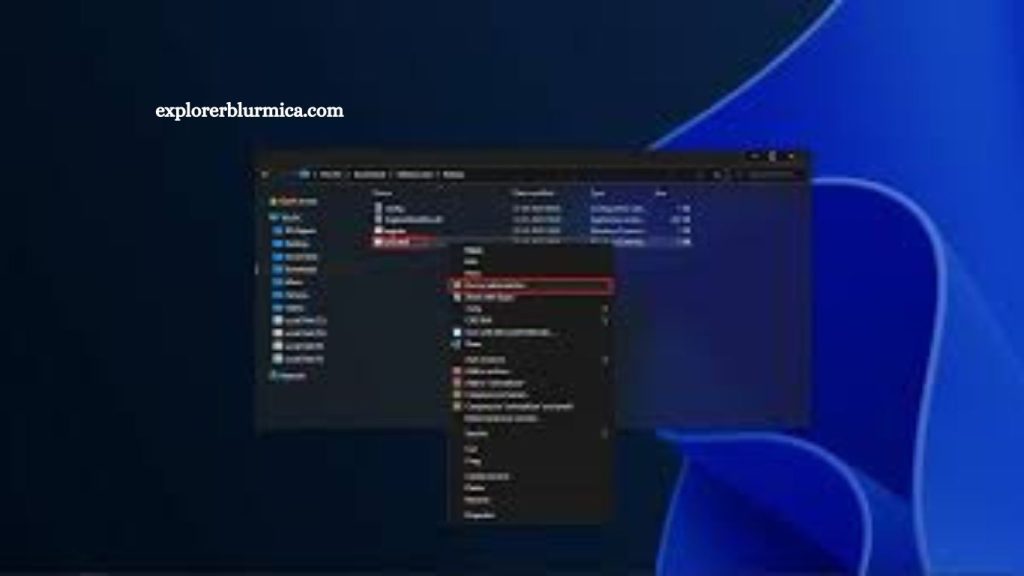
Launching the setup file with administrator privileges allows the program to apply system-level modifications. Right-clicking the executable and selecting “Run as Administrator” ensures proper permissions.
User Account Control may prompt confirmation before proceeding. Accepting the prompt allows installation to continue without interruption.
Step 3: Apply Explorer Modifications
ExplorerBlurMica integrates with Windows Explorer processes to apply visual effects. Installation scripts typically inject or modify system parameters responsible for window rendering.
A system restart often becomes necessary at this stage. Restarting ensures Explorer reloads with the new visual configuration applied correctly.
Step 4: Verify Installation
A successful installation becomes visible immediately after the system reboot. File Explorer windows should display enhanced blur and mica transparency effects.
Visual confirmation ensures the tool is functioning correctly. Any missing effects may indicate incomplete installation or conflicting software.
Configuring ExplorerBlurMica Settings
Customization options allow adjustment of blur intensity and transparency levels. Fine-tuning these settings creates a personalized desktop appearance.
Lower blur values produce a subtle effect, while higher values create a more pronounced glass-like interface. Users can experiment to find a balance between aesthetics and readability.
Some versions include configuration files or GUI-based controllers to make adjustments easier. Careful editing of configuration settings prevents visual inconsistencies.
Troubleshooting Common Installation Issues
Installation errors may occur due to system incompatibility or missing dependencies. Running the installer in compatibility mode often resolves execution problems.
Missing visual effects typically result from disabled Windows transparency settings. Enabling “Transparency Effects” under Personalization settings restores expected functionality.
Conflicts with other UI customization tools may block proper execution. Disabling or uninstalling similar software eliminates overlapping modifications.
Corrupted downloads can also cause installation failure. Re-downloading the latest version from a trusted source resolves file integrity issues.
Performance Considerations
ExplorerBlurMica is designed to remain lightweight, but visual effects may slightly impact older systems. Modern CPUs and GPUs handle transparency rendering efficiently without noticeable lag.
Reducing animation intensity improves performance on low-end hardware. Turning off unnecessary background visual enhancements further optimizes system responsiveness.
Monitoring system performance after installation helps identify any unusual resource usage. Task Manager provides real-time insights into CPU and memory consumption.
Uninstalling ExplorerBlurMica
Removal becomes necessary when reverting to the default Windows appearance. Uninstallation usually involves running a provided uninstall script or reversing system modifications.
Restarting the system after removal restores the original File Explorer behavior. Any leftover configuration files can be manually deleted for a clean reset.
System Restore also provides a reliable rollback option if manual uninstallation becomes complex.
Best Practices for Safe Usage
Maintaining system backups ensures protection against unexpected issues. Regular updates from the developer improve stability and compatibility with new Windows builds.
Avoiding unofficial modifications prevents system conflicts. Only trusted sources should be used for updates and patches.
Monitoring Windows updates ensures compatibility remains intact after major system upgrades.
Frequently Asked Questions
What is ExplorerBlurMica used for?
ExplorerBlurMica is a Windows customization tool that adds blur and mica visual effects to File Explorer, giving it a modern interface.
Is ExplorerBlurMica safe to install?
Yes, when downloaded from trusted sources like official repositories, it is safe and does not harm system files if used correctly.
Does ExplorerBlurMica work on Windows 10?
It works on both Windows 10 and Windows 11, although Windows 11 provides better visual compatibility.
Do I need admin rights to install ExplorerBlurMica?
Yes, administrator permissions are required because the tool modifies system-level Explorer settings.
Why are blur effects not showing after installation?
This usually happens if Windows transparency effects are disabled or if the system was not restarted after installation.
Can ExplorerBlurMica slow down my PC?
Performance impact is minimal on modern systems, but older hardware may experience slight slowdowns with visual effects enabled.
How do I uninstall ExplorerBlurMica?
You can uninstall it using the provided removal script or restore your system to a previous restore point.
Conclusion
ExplorerBlurMica delivers a refined way to upgrade the visual appearance of Windows File Explorer with blur and mica effects inspired by modern UI design. Proper installation, correct system setup, and careful configuration ensure smooth performance and stable results. Users who follow the recommended steps gain a cleaner, more polished desktop experience without compromising system efficiency.